Plotter.view_vector#
- Plotter.view_vector(
- vector: VectorLikeFloat,
- viewup: VectorLikeFloat | None = None,
- *,
- render: bool = True,
- bounds: VectorLikeFloat | None = None,
View the scene from the direction of the given vector.
The camera is placed along
vectorfrom the center of the scene and looks back toward it, so it looks in the direction opposite tovector.- Parameters:
- vector
VectorLikeFloat Vector pointing from the focal point to the camera position.
- viewup
VectorLikeFloat, optional Sequence describing the view up of the camera.
- renderbool, default:
True If the render window is being shown, trigger a render after setting the camera position.
- bounds
VectorLikeFloat, optional Automatically set up the camera based on a specified bounding box
(x_min, x_max, y_min, y_max, z_min, z_max).
- vector
Examples#
Download Python source code | Download Jupyter notebook
View a sphere from the positive x-axis. The camera looks in the negative x direction.
>>> import pyvista as pv
>>> pl = pv.Plotter()
>>> _ = pl.add_mesh(pv.Sphere())
>>> pl.view_vector([1, 0, 0])
>>> pl.camera.direction
(-1.0, 0.0, 0.0)
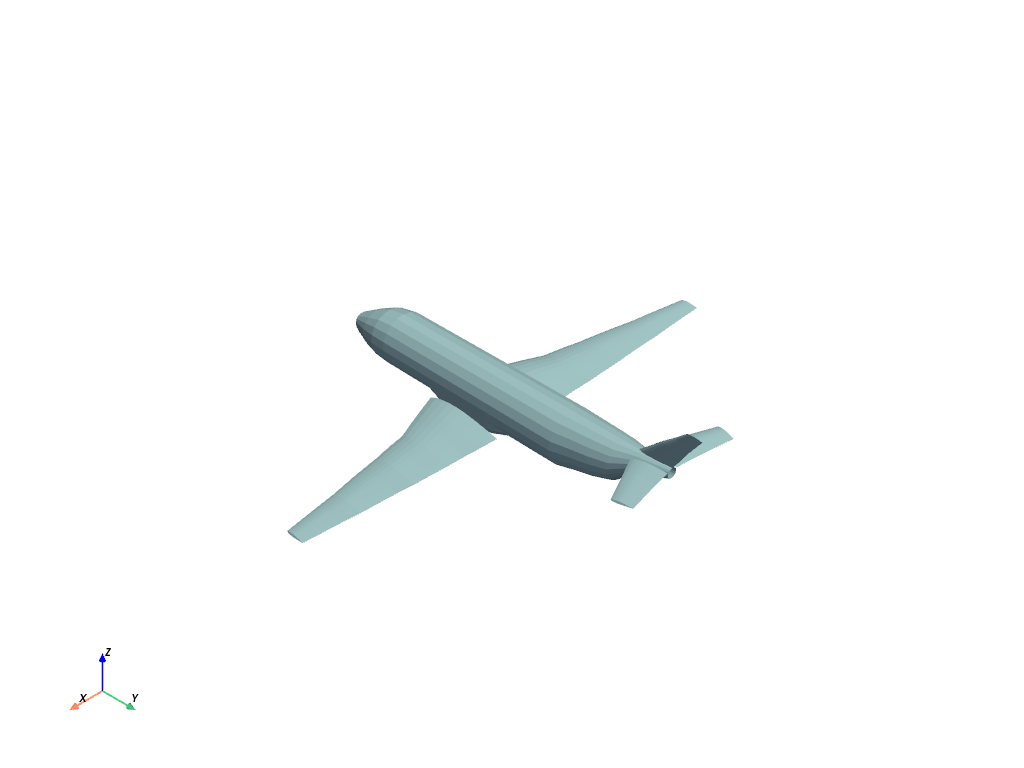
View a built-in mesh from the (1, 1, 1) direction. The camera is
placed along this vector and looks back toward the center of the mesh,
so the positive x, y, and z axes all point toward the viewer.
>>> from pyvista import examples
>>> airplane = examples.load_airplane()
>>> pl = pv.Plotter()
>>> _ = pl.add_mesh(airplane)
>>> pl.view_vector([1, 1, 1])
>>> pl.show_axes()
>>> pl.show()
Used In#
API Examples
Light.attenuation_values(1 use)Renderer.view_vector(1 use)
Gallery Examples