Picking Points on a Mesh#
Download Python source code | Download Jupyter notebook
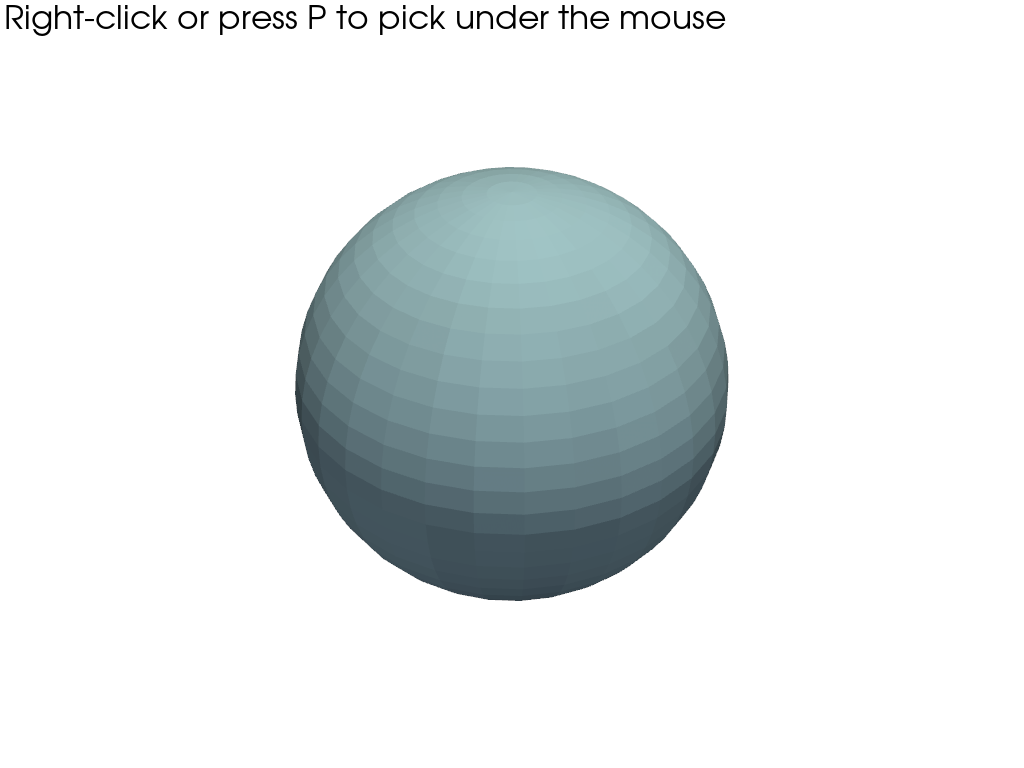
Pick points on a mesh using enable_point_picking().
import pyvista as pv
Pick Points on a Sphere#
sphere = pv.Sphere()

pl = pv.Plotter()
pl.add_mesh(sphere, pickable=True)
pl.enable_point_picking()
pl.show()
Ignore the 3D Window#
In the above example, both points on the mesh and points in the 3d window can be selected. It is possible instead pick only points on the mesh.
sphere = pv.Sphere()

pl = pv.Plotter()
pl.add_mesh(sphere, pickable=True)
pl.enable_point_picking(pickable_window=False)  # Make the 3D window unpickable
pl.show()
Modify Which Actors Are Pickable#
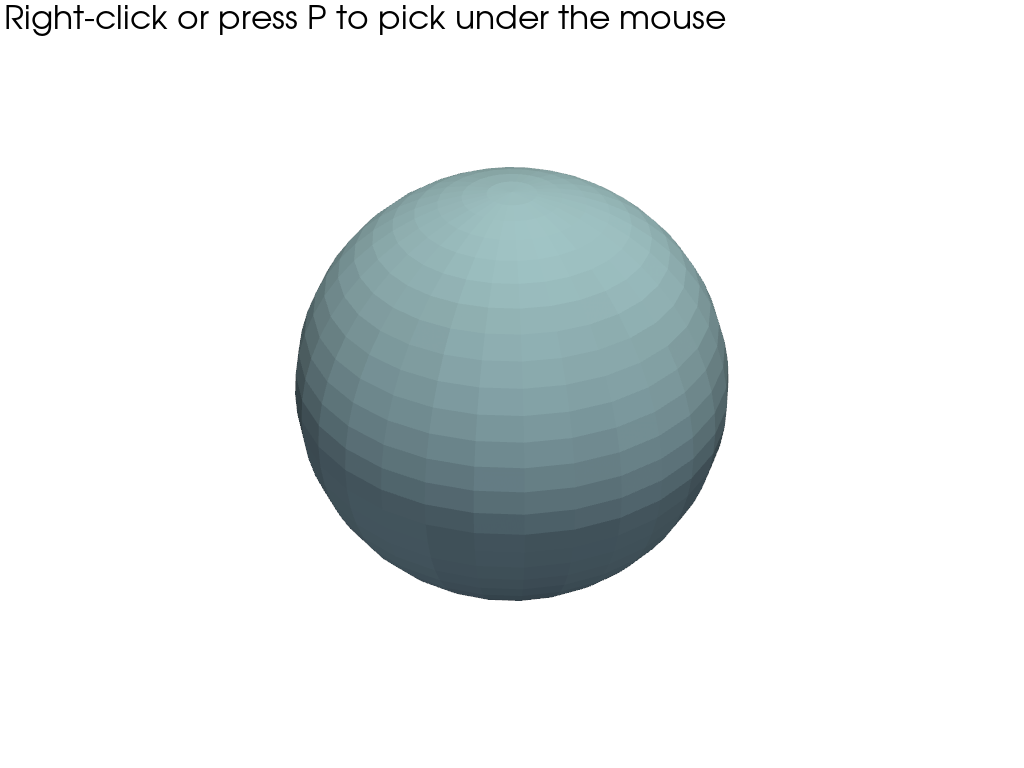
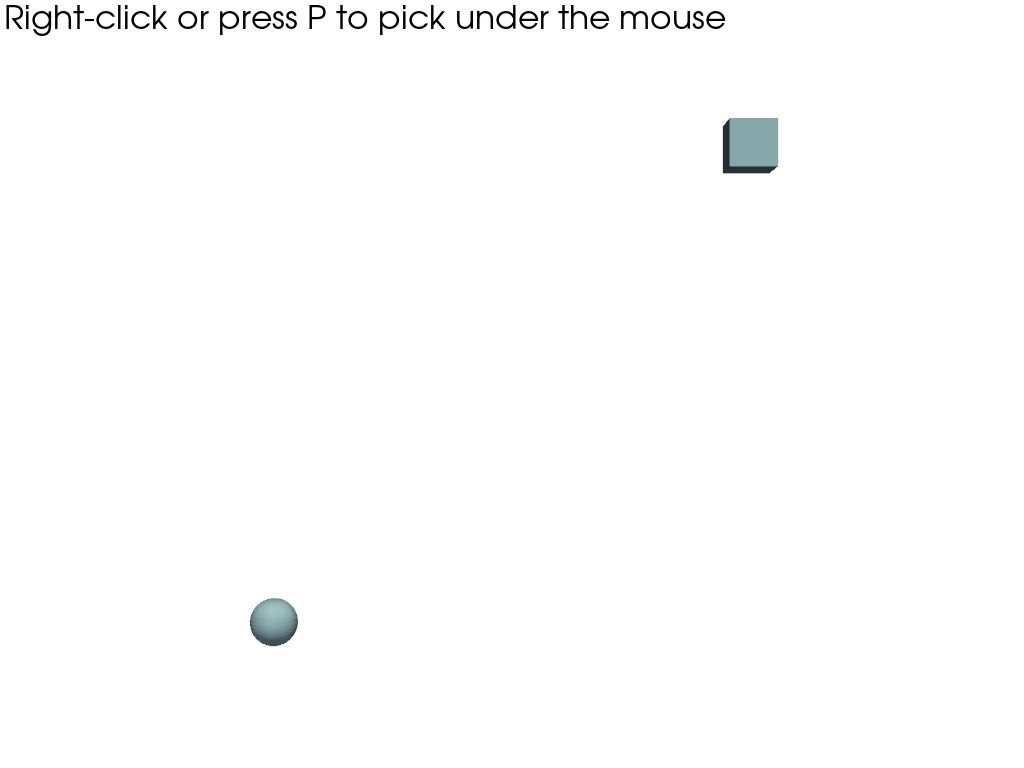
After enabling point picking, we can modify which actors are pickable.
sphere = pv.Sphere()
cube = pv.Cube().translate([10, 10, 0])

pl = pv.Plotter()
sphere_actor = pl.add_mesh(sphere, pickable=True)  # initially pickable
cube_actor = pl.add_mesh(cube, pickable=False)  # initially unpickable
pl.enable_point_picking(pickable_window=False)

pl.pickable_actors = [sphere_actor, cube_actor]  # now both are pickable
pl.view_xy()
pl.show()
Pick Using the Left-Mouse Button#
sphere = pv.Sphere()

pl = pv.Plotter()
pl.add_mesh(sphere, pickable=True)
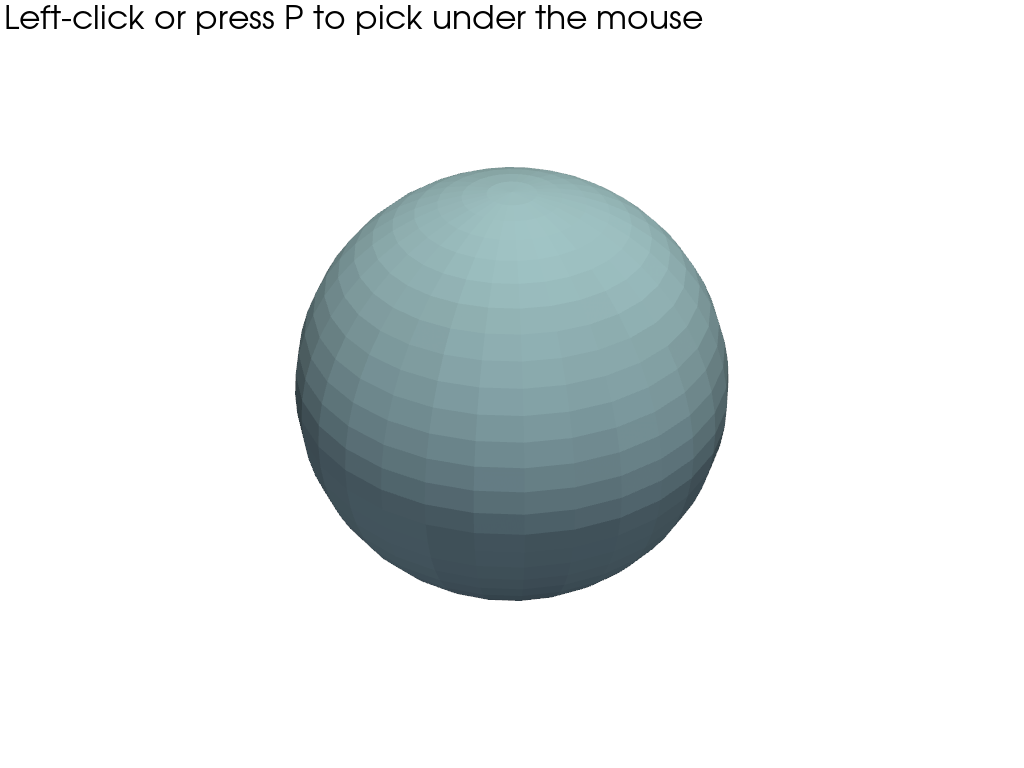
pl.enable_point_picking(left_clicking=True)
pl.show()
Total running time of the script: (0 minutes 0.718 seconds)