Working With glTF Files#
Download Python source code | Download Jupyter notebook
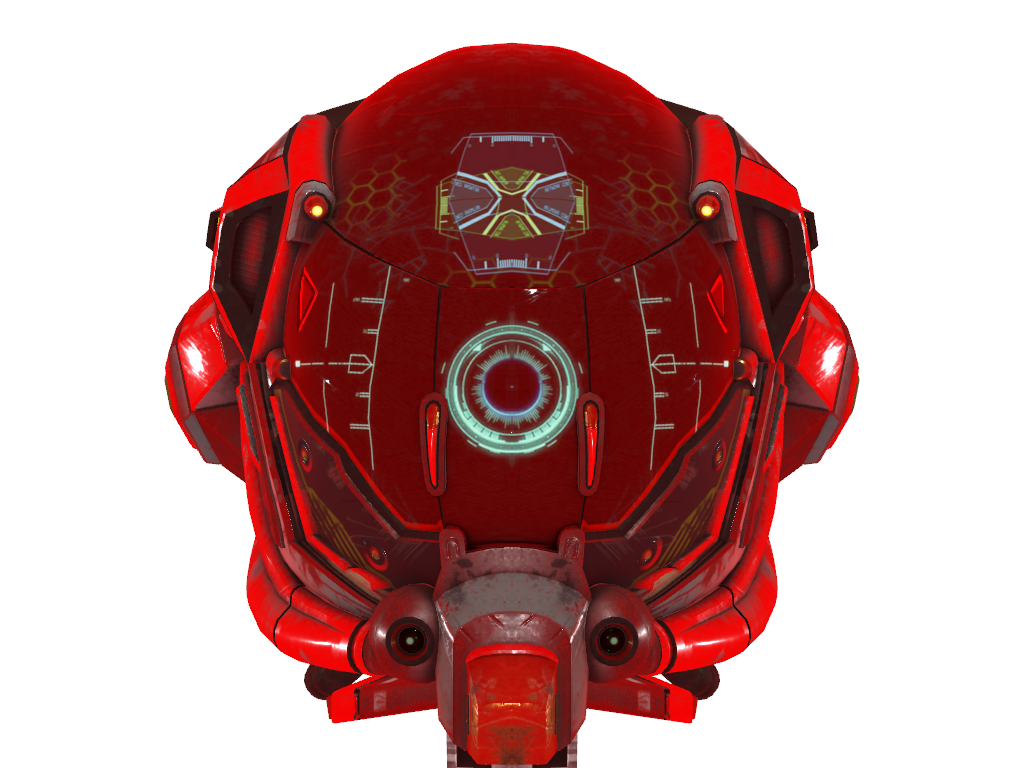
Import a glTF file directly into a PyVista plotting scene.
For more details regarding the glTF format, see: https://www.khronos.org/gltf/
First, download the examples. Note that here we’re using a high dynamic range texture since glTF files generally contain physically based rendering and VTK v9 supports high dynamic range textures.
import pyvista as pv
from pyvista import examples

helmet_file = examples.download_damaged_helmet(load=False)
texture = examples.download_dikhololo_night()

# Image-based lighting reflects the environment from the texture's mipmap levels
texture.mipmap = True
texture.interpolate = True
Set up the plotter and enable environment textures. This works well
for physically based rendering enabled meshes like the damaged
helmet example. Use pyvista.Plotter.import_gltf() to import file.
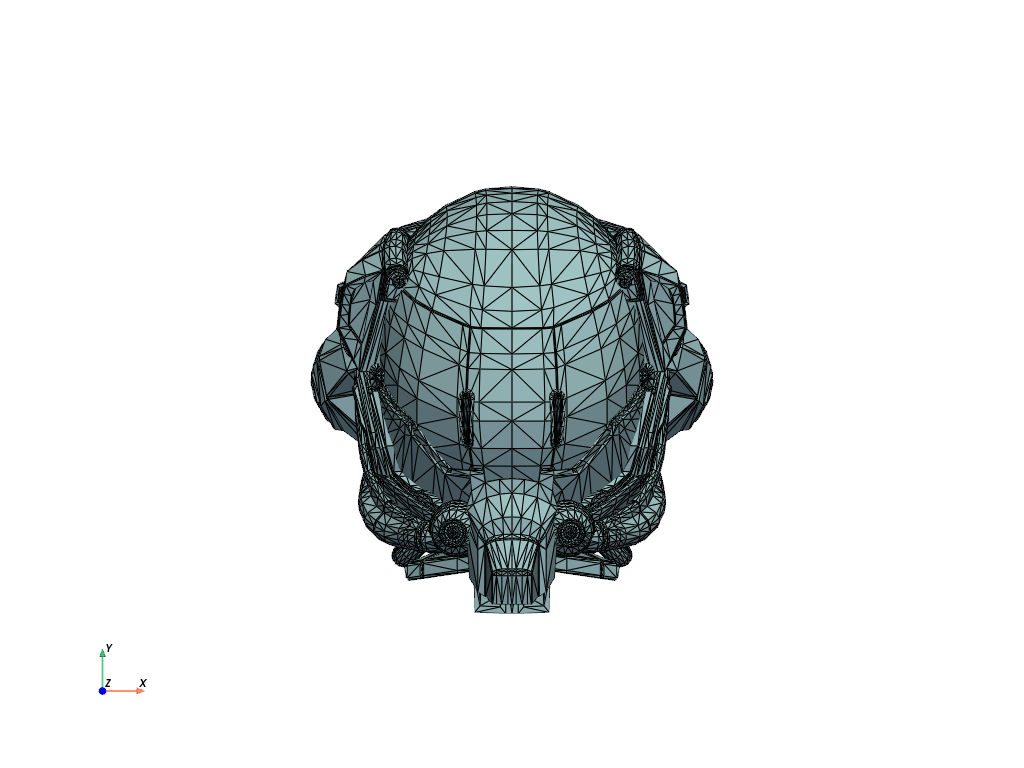
You can also directly read in gltf files and extract the underlying mesh.
Total running time of the script: (0 minutes 1.631 seconds)