Box Widget#
Download Python source code | Download Jupyter notebook
Enable and disable the box widget to clip or crop a mesh interactively.
Uses pyvista.Plotter.add_box_widget() and
pyvista.Plotter.clear_box_widgets(). When enabling the box widget,
you must provide a custom callback function otherwise the box would appear
and do nothing - the callback functions are what allow us to leverage the
widget to perform a task like clipping/cropping.
Considering that using a box to clip/crop a mesh is one of the most common use
cases, we have included a helper method that will allow you to add a mesh to a
scene with a box widget that controls its extent, the
pyvista.Plotter.add_mesh_clip_box() method.
import pyvista as pv
from pyvista import examples

mesh = examples.download_washington_bust()
pl = pv.Plotter()
pl.add_mesh_clip_box(mesh, color='white')
pl.show()
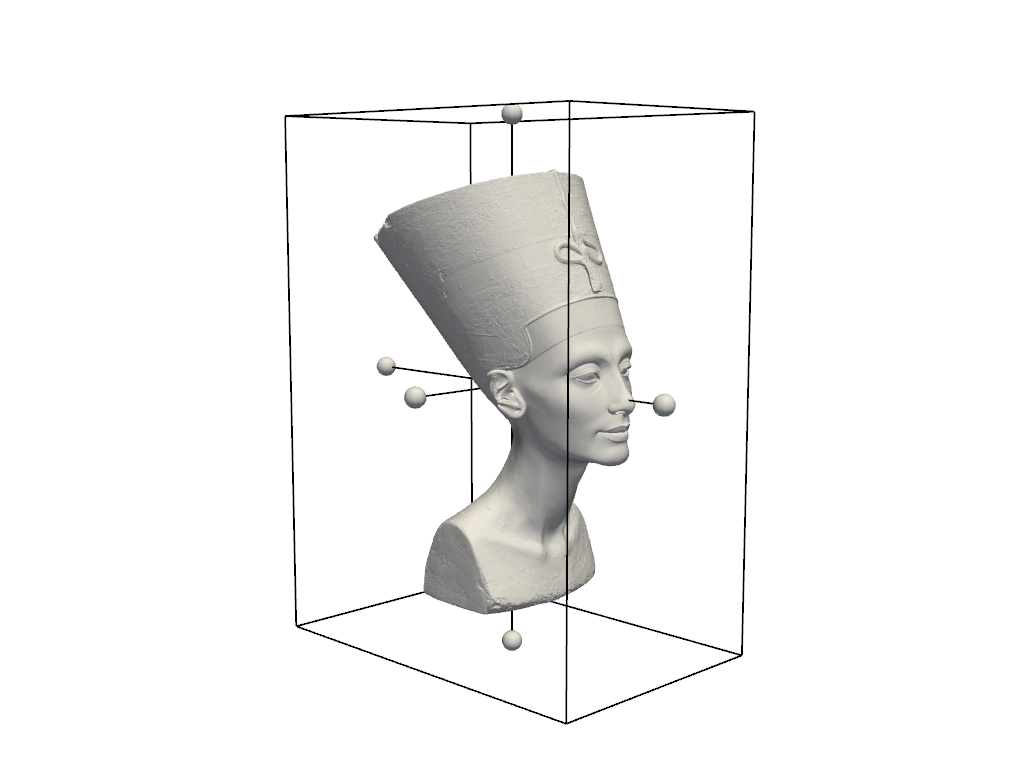
After interacting with the scene, the clipped mesh is available as:
[UnstructuredGrid (0x7fa4d5842b00)
  N Cells:    150000
  N Points:   75004
  X Bounds:   3.921e+02, 9.406e+02
  Y Bounds:   -1.498e+03, -9.939e+02
  Z Bounds:   3.181e+02, 1.014e+03
  N Arrays:   7]
Total running time of the script: (0 minutes 1.091 seconds)